

Installation Guide | Windows 10 Professional
Keep in mind!
• Make sure your Windows version matches the Windows version of the product key.
• Ensure you have a stable internet connection during installation.
• Confirm that your device meets the minimum system requirements listed in the product description before installing.
• You can also download Microsoft’s PC Health Check application to verify whether your device supports Windows 10.
⚠️ Microsoft has gradually ended support for some older products. As a result, telephone activation is no longer available.
If you experience any issues or have questions during installation or activation, please contact our customer support. Our support team is available during business hours, while chat remains accessible outside these hours for commonly asked questions.
Download
Download the installer below. This EXE file is required to begin the installation.
Other Languages (64-bit & 32-bit Downloads)
If you need the installer in another language or version, please select your preferred language and download the correct installer version below: (If your device has more than 4 Gb of RAM, we recommend the 64-bit version)
64-Bit Installers
| Language | Download |
|---|---|
| Deutsch | Herunterladen |
| English | Download |
| Français | Télécharger |
| Italiano | Scarica |
| Español | Descargar |
| Dutch | Downloaden |
| Sverige | Ladda ner |
32-Bit Installers
| Language | Download |
|---|---|
| Deutsch | Herunterladen |
| English | Download |
| Français | Télécharger |
| Italiano | Scarica |
| Español | Descargar |
| Dutch | Downloaden |
| Sverige | Ladda ner |
License & Activation
Once you have received your product key, follow the steps below to activate your Windows operating system.
Tip: It is recommended to complete the installation and activation before signing in with your Microsoft account.
Product Key Activation
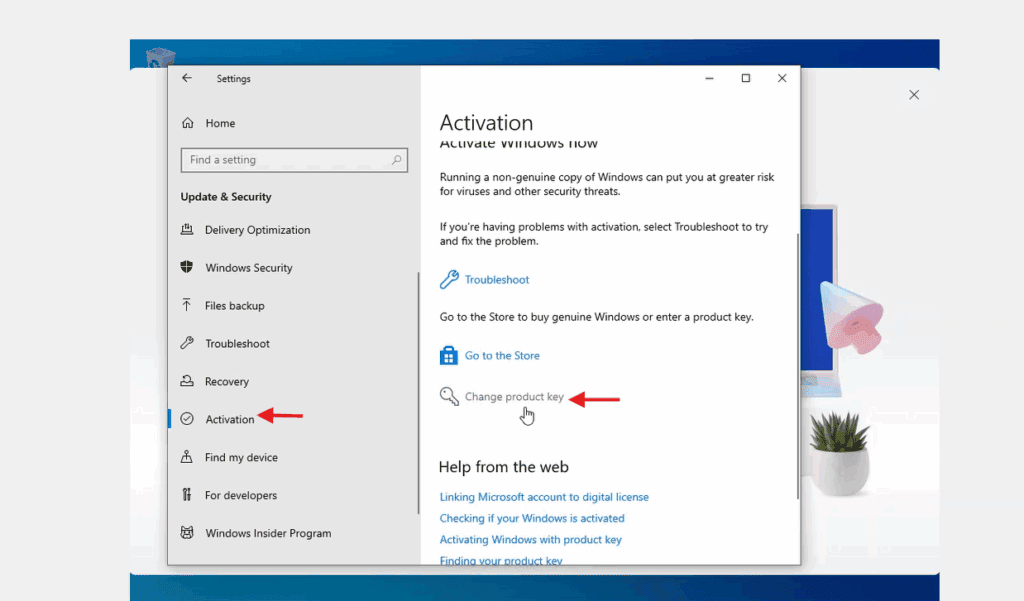
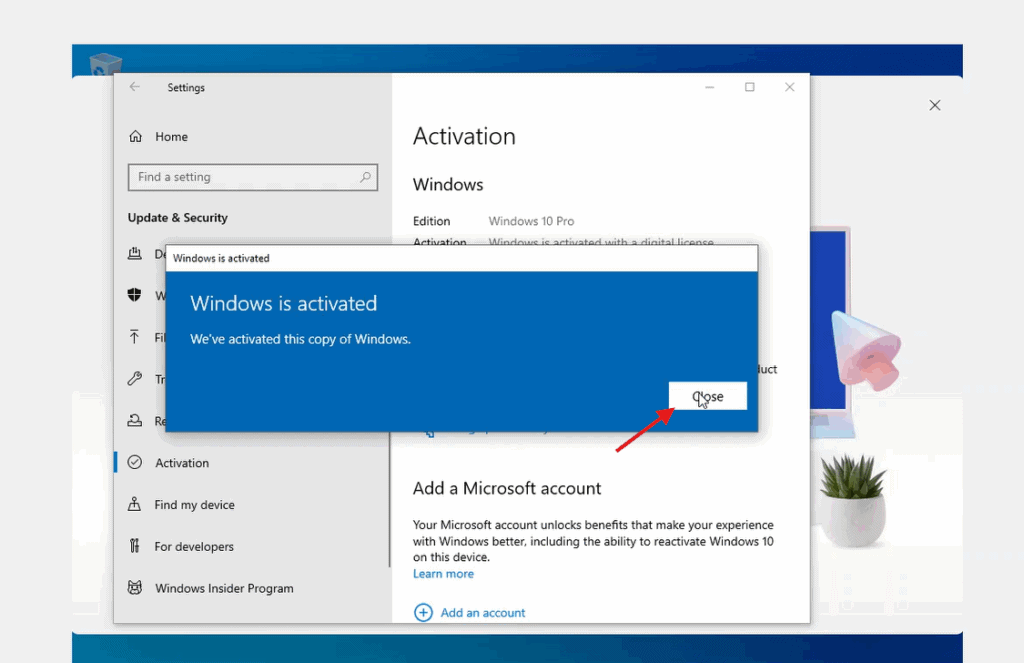
1. Go to Settings → Update & Security → Activation.
2. Click Change product key.
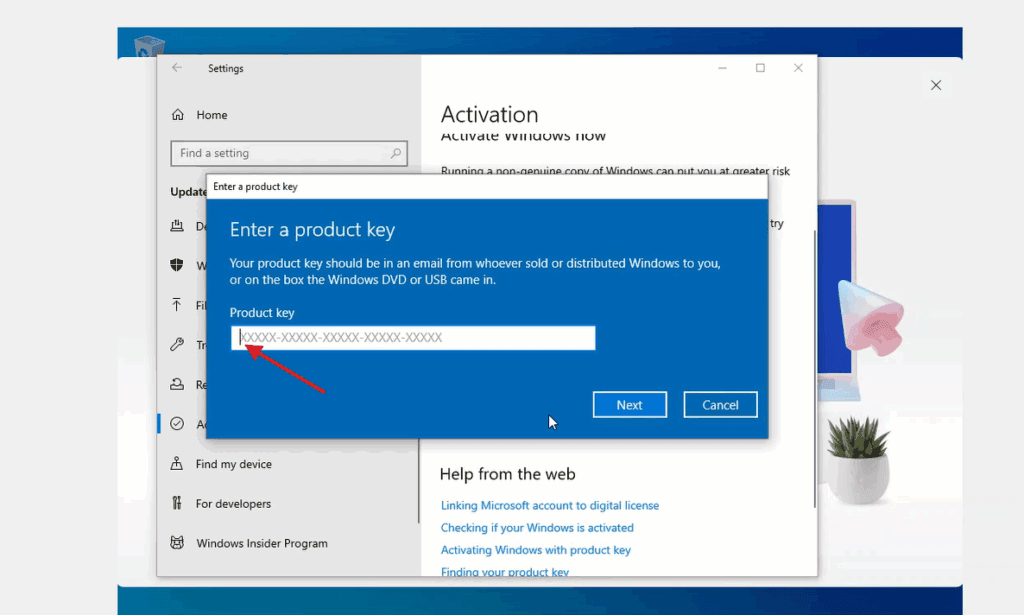
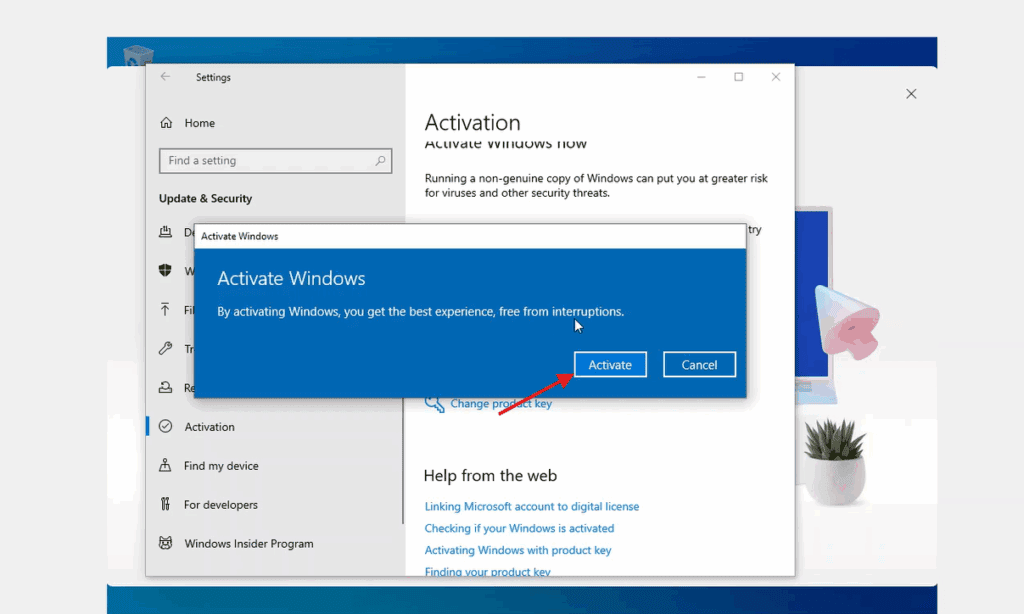
3. Enter your product key and select Activate.
Once completed, your Windows operating system will be properly activated.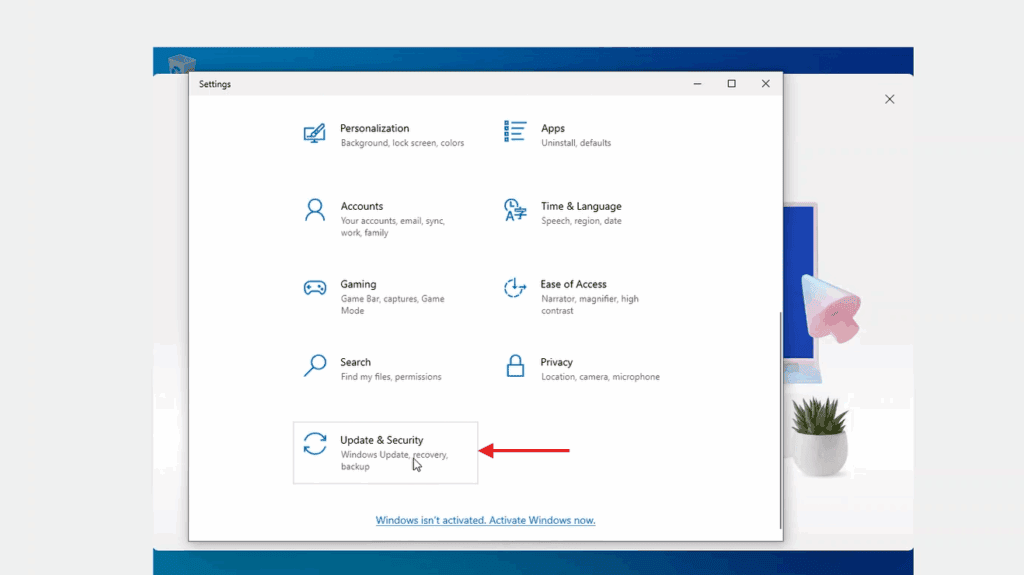
Upgrade from Windows 10 Home to Windows 10 Professional
To upgrade from Windows 10 Home to Windows 10 Professional, you first need to switch the edition using a generic product key. This key does not permanently activate Windows. After the upgrade, you can enter your purchased license key to complete activation.
1. Open Activation settings
Go to Settings → Update & Security → Activation → Change product key.
2. Enter the generic Windows 10 Pro key
Enter the following generic key and click Next:
VK7JG-NPHTM-C97JM-9MPGT-3V66T
Follow the on-screen instructions to start the upgrade to Windows 10 Pro.
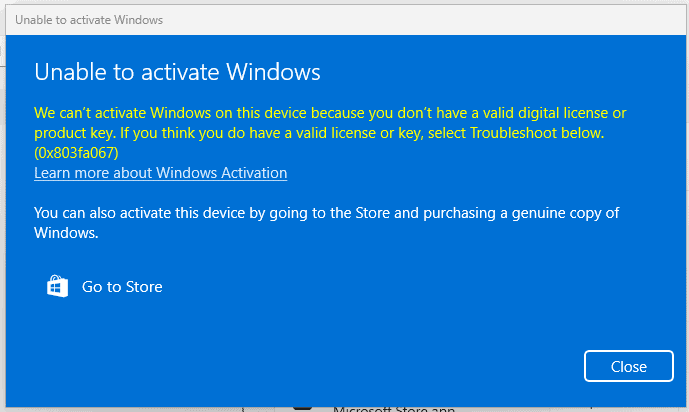
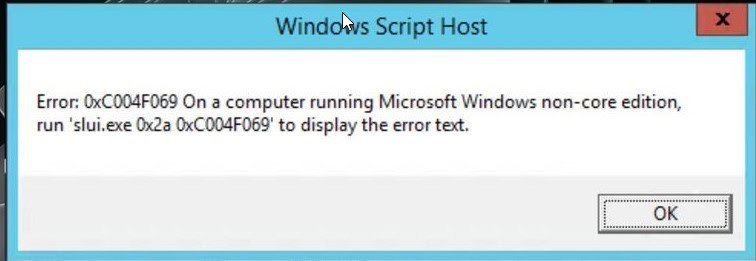
Note: If you encounter an error, temporarily disconnect from the internet and repeat this step. Your PC may restart automatically. Once restarted, reconnect to the internet and continue.
3. Enter your purchased license key
After the system has been upgraded to Windows 10 Pro, return to:
Settings → Update & Security → Activation → Change product key, then enter your purchased Windows 10 Pro license key and follow the instructions.
4. Restart if prompted
Restart your device if requested to apply all changes.




 Pay attention!



