

Installation Guide | Microsoft Visio 2021 Standard (64-bit & 32-bit)
License & Activation
• The product key you purchased is a prepaid license and is not compatible with any pre-installed Microsoft software.
• This is an original Microsoft product.
• Before installing, uninstall any existing version of Microsoft Office or Visio from your PC.
• Restart your computer after uninstalling. This step is important to avoid compatibility issues.
⚠️ Microsoft has gradually ended support for some older products. As a result, telephone activation is no longer available.
If you experience any issues or have questions during installation or activation, please contact our customer support. Our support team is available during business hours, while chat remains accessible outside these hours for commonly asked questions.
Download
Download the installer below. This EXE file is required to begin the installation.
Other Languages (64-bit & 32-bit Downloads)
If you need the installer in another language or version, please select your preferred language and download the correct installer version below:
64-Bit Installers
| Language | Download |
|---|---|
| Deutsch | Herunterladen |
| English | Download |
| Français | Télécharger |
| Italiano | Scarica |
| Español | Descargar |
| Dutch | Downloaden |
| Finnish | Lataa |
| Norwegian | Last ned |
| Swedish | Download |
| Danish | Download |
32-Bit Installers
| Language | Download |
|---|---|
| Deutsch | Herunterladen |
| English | Download |
| Français | Télécharger |
| Italiano | Scarica |
| Español | Descargar |
| Dutch | Downloaden |
| Finnish | Lataa |
| Norwegian | Last ned |
| Swedish | Download |
| Danish | Download |
Installation
Before installing, make sure that any previous versions of Microsoft Office or Visio have been fully removed from your computer. Restart your device after uninstalling to prevent compatibility issues.
Tip: It is recommended to complete the installation and activation before signing in with your Microsoft account.
If needed, you can refer to Microsoft’s official help documentation for guidance on this step.
Installation Steps:
1. Locate the installer
Find the downloaded installer file, usually located in your Downloads folder.
Important: An active internet connection is required, as the installer downloads the necessary files directly from Microsoft.
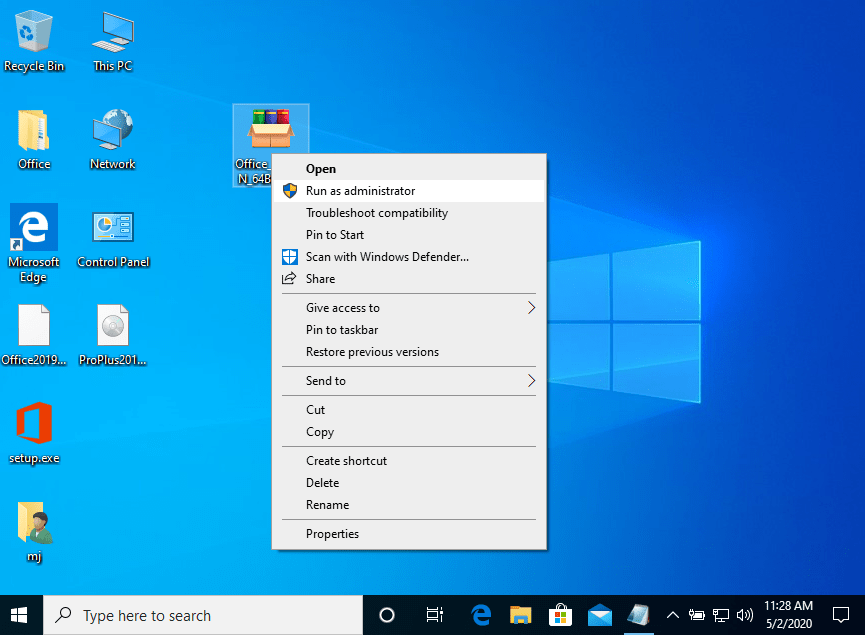
2. Run as administrator
Right-click the installer file and select Run as administrator. When prompted to allow the app to make changes to your device, click Yes.
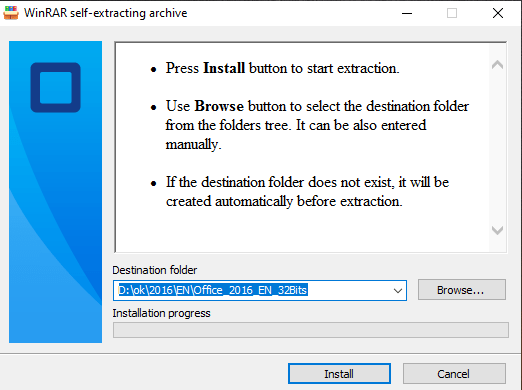
3. Start the installation
Click the Install button. The installer will unzip the application and install the product automatically.
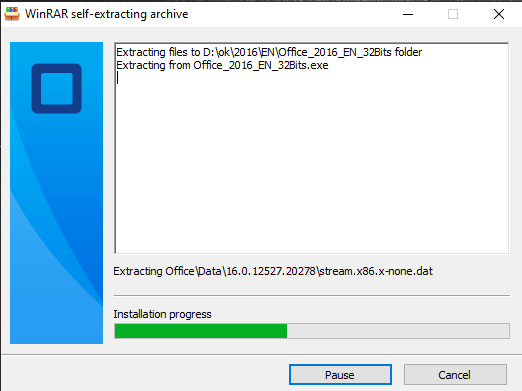
4. Complete the installation
Please wait until the installation process finishes.
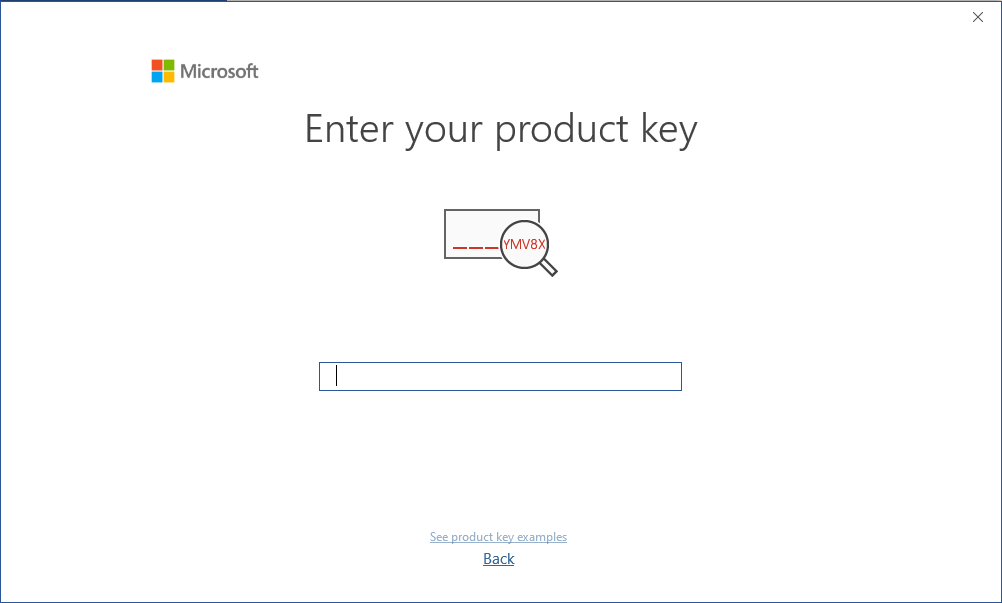
Activation
Once the installation is complete, open any application from the Microsoft Office package. You will be prompted to enter the activation key you received by email. Follow the on-screen instructions to complete activation.




 Prestar atenção!



